Google Vault to PST Converter Create Outlook PST Files with Gmail Labels as Folders
Create PST files for Outlook from the MBOX or PST files that Google Vault makes for your Google Workspace account. Large exports in many parts convert in one run.
Windows 10 and 11Outlook not required to create PSTOne-time license from $99
- Many export parts convert in one run
- One PST for every account
- Save every message once with Like Outlook
- Attachments and inline images stay with their message
- Original export stays unchanged
- Reads ZIP exports without unzipping
How to Convert a Vault Export to PST
Download Every Part From Vault
Store all parts in one folder on your PC. Vault links last 15 days, so download early. New to exports? See the Google Vault Export Guide.
Open the Export in Vault Converter
Click Open, then Select folder... and select the export. You can also open one zip file or one MBOX file. The software lists every account with its Gmail folders.
Click Export and Select PST
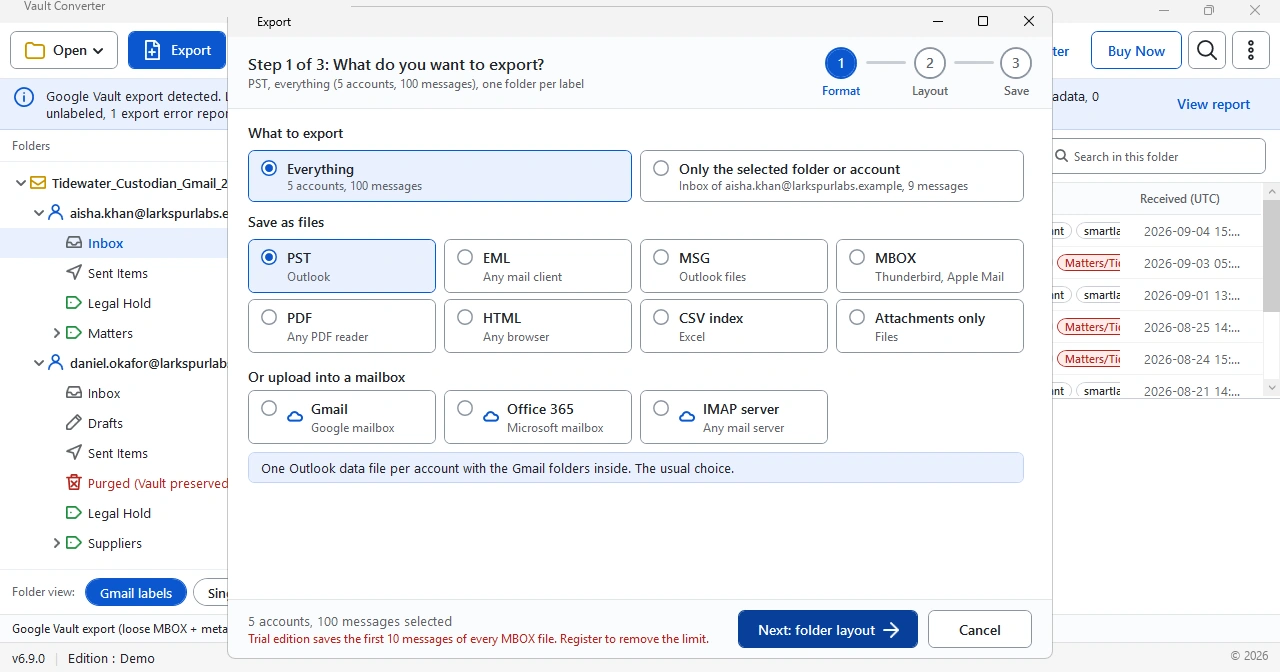
Click Export. In Step 1 of 3 (Format), select PST under Save as files. Then follow Layout to select how folders look and Save to select where the files go.
Export Now and Open the Output
Select Export now and wait for the report to show Done. Then use Open Output folder to find the PST and open it in Outlook. Want to check the steps first? See How It Works.
Native Vault PST Versus Converted PST
Vault can write PST files itself when you select PST as the export format. The result opens in Outlook, but it differs from a converted PST in several ways. Google gives no advice on choosing PST over MBOX, so this table sticks to what every file holds.
| Item | PST from Vault | PST from the converter |
|---|---|---|
| Source | Vault writes it when you select PST at export time | The software writes it from your MBOX, PST or ZIP export |
| File names | export_name-account-randomstring.pst, with the full email address of the account | You select the destination in the Save step |
| Folders | Gmail labels do not become folders, and every message appears in a single folder | Like Gmail builds one folder per label. Like Outlook saves every message once and keeps the other labels as categories |
| Labels | Kept in the Labels column of the metadata file | Read from the metadata file and rebuilt as folders |
| Large accounts | Parts after 1 GB, numbered inside ZIP files | Every part loads together in one run |
| Failed messages | Saved as EML files in a conversion errors ZIP | Counted in the finished report, with a report CSV saved next to the output |
| Outlook | Google lists Outlook for reviewing PST files | Outlook is not needed to create the file, only to open it |
What You Get in the PST
| Item | Result in the PST file |
|---|---|
| Messages | Sender, recipients, date, subject and body stay with every message |
| Attachments | Attachments and inline images stay with their message |
| Folder structure | Gmail labels are rebuilt as folders instead of one folder for all mail |
| Export parts | Split parts load together and convert in one run |
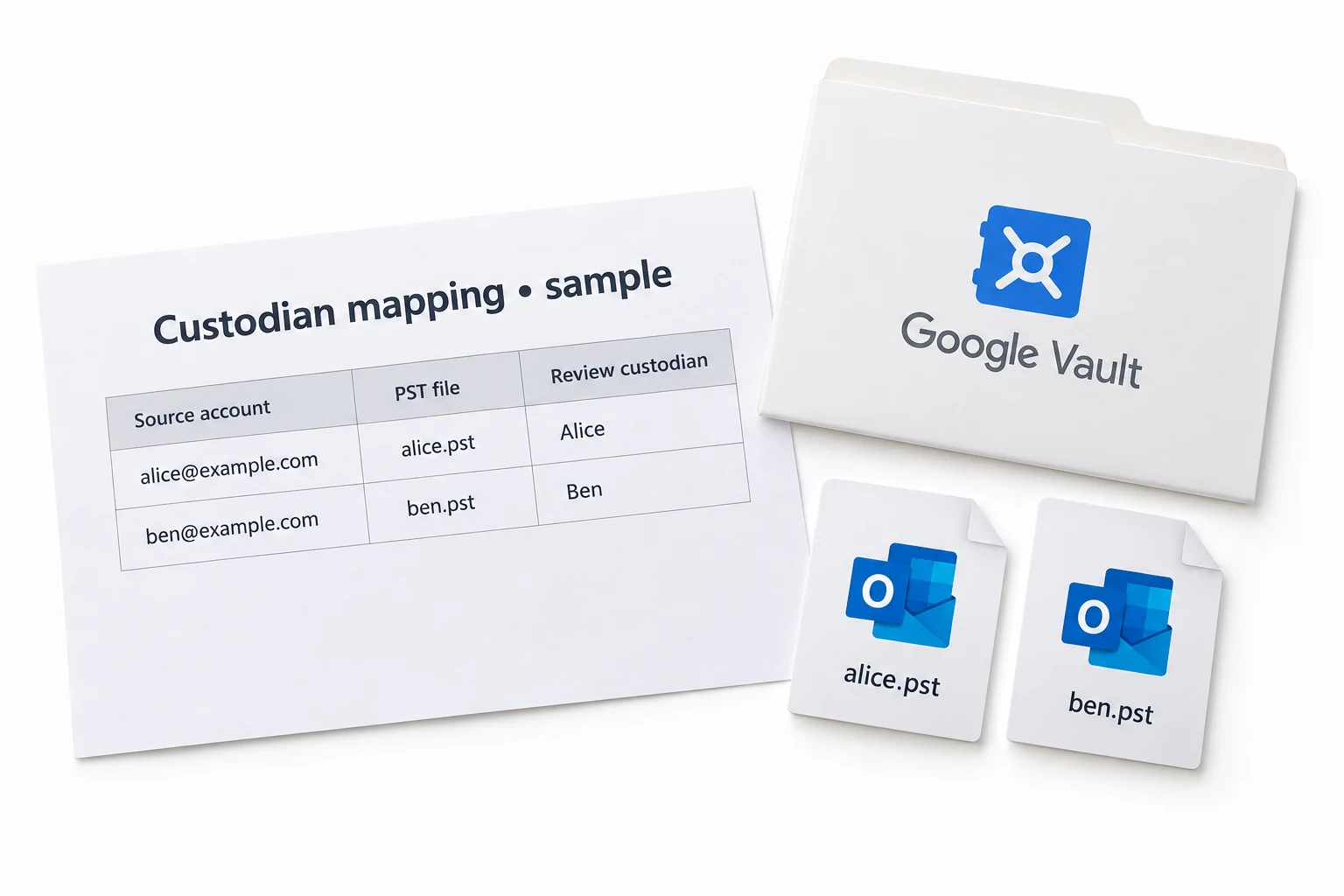
| Custodians | One PST for every custodian when you need separate files |
How Vault MBOX Files Convert to PST Files
MBOX stores mail as one long text file, so every message is joined to the next and starts at a line that begins with From. Outlook has no use for that layout, because it stores mail in PST files, the Personal Storage Table. Converting saves the same messages in that format.
Vault names MBOX files export_name-account-randomstring.mbox and splits them at 10 GB. The labels are not inside those files. Google lists them in the Labels column of the metadata file. Open the export folder, not a single MBOX file, so the software can read the metadata file that is stored next to the MBOX files.
Why One Message Appears in Several Folders
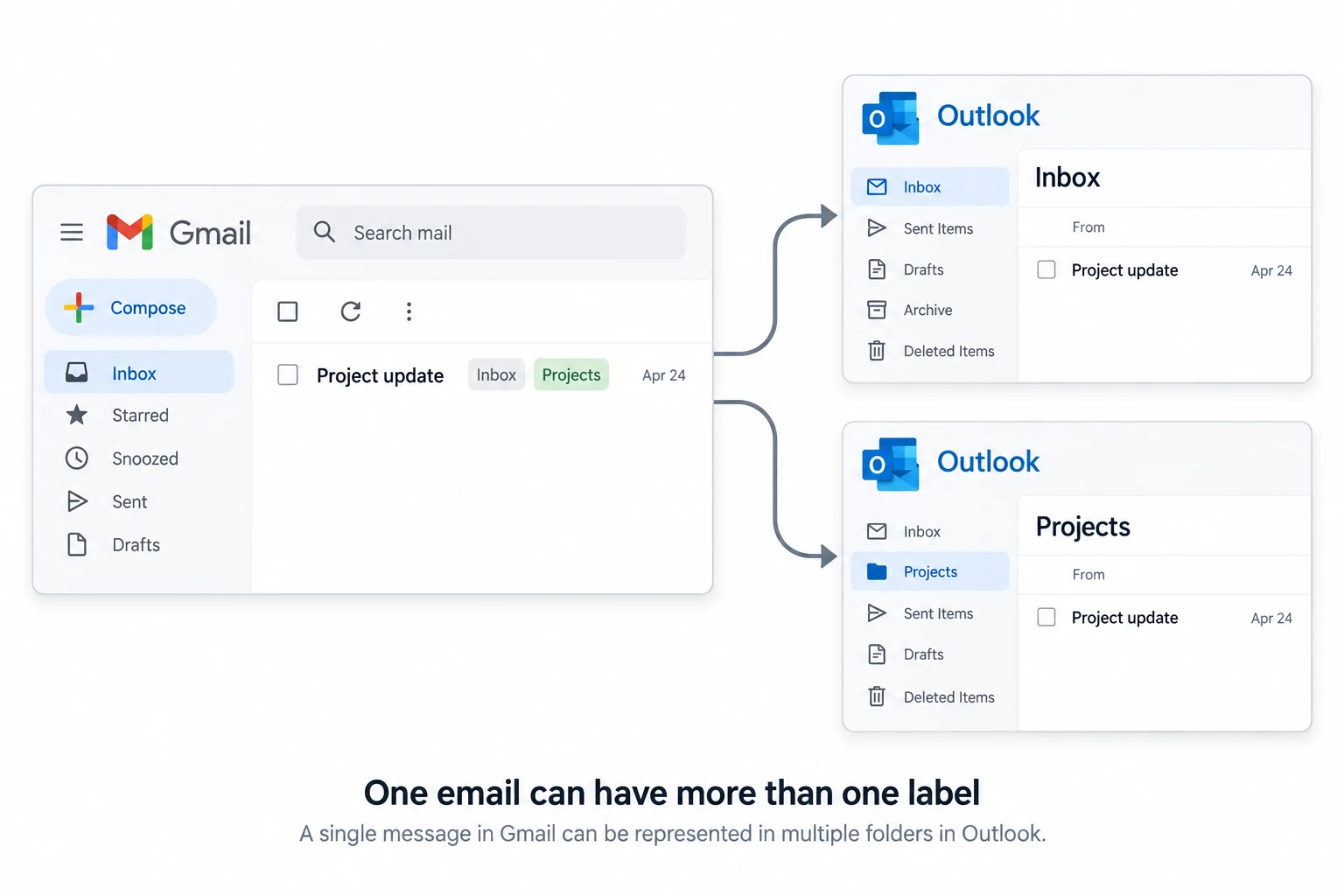
Gmail labels are not folders. Google's Gmail Help says labels are different from folders, and the Gmail API lets one message have several labels at the same time. Outlook folders work the other way: a message that is in two folders is two copies.
That is why the export window counted 100 sample messages as 175 copies in 26 folders with Like Gmail. A message with three labels goes into three folders. Select Like Outlook when you need every message saved once, for example when a mailbox must keep its true message count. Mail that belongs in a standard folder, like Inbox or Sent Items, goes there. Everything else goes under its first label, and the other labels become categories in Outlook.
One PST for Every Custodian
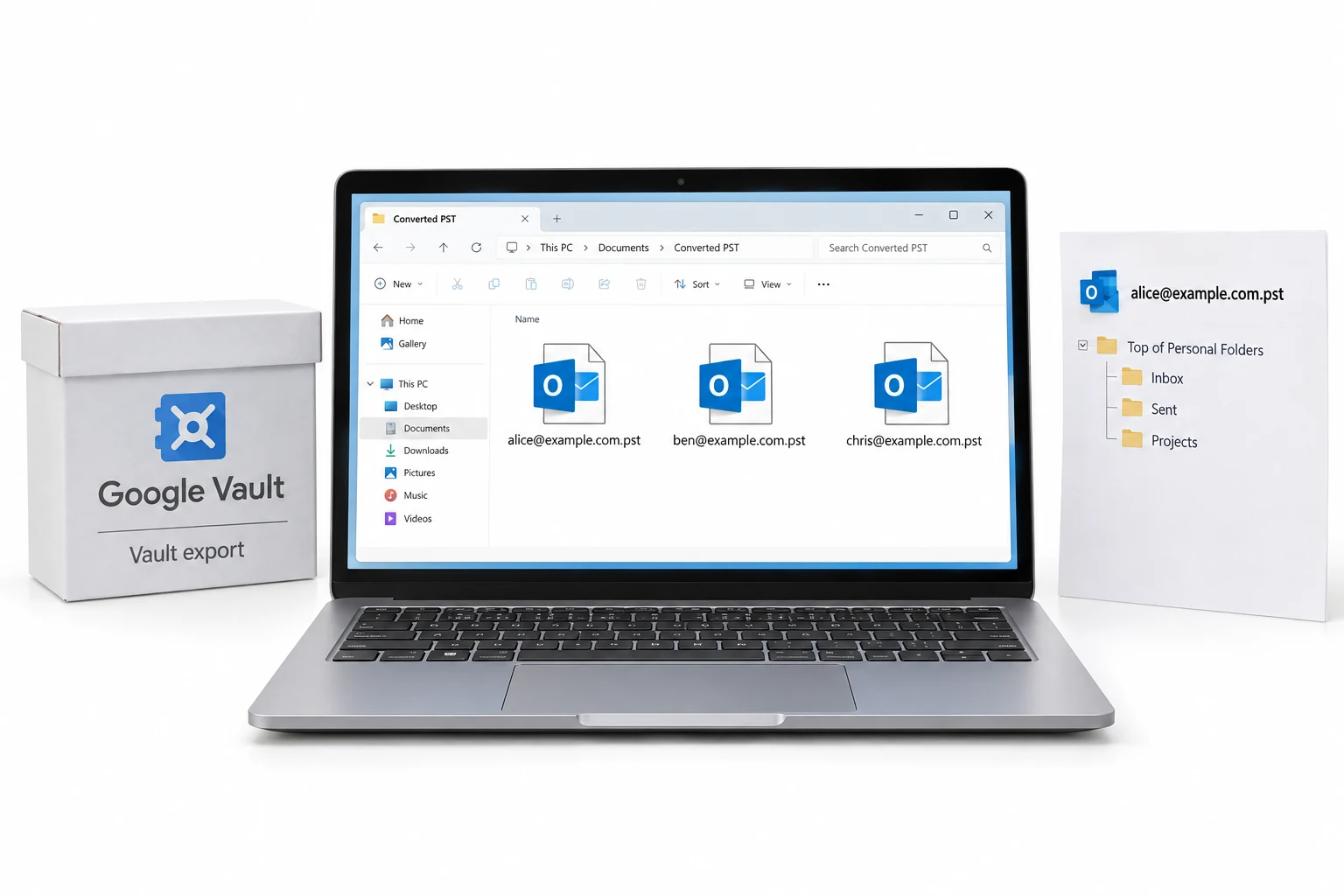
Vault writes separate files for every account, and every file name includes the account's email address. A large account arrives as many parts. Converting by custodian gives every person one PST instead of a long list of parts, which keeps reviewer sets and mailbox moves organized. Step 2 has a box called One PST file per account. Select the box and every mailbox gets its own PST file. Clear the box and every account becomes a folder inside a single PST.
Sample Run: 100 Vault Messages to PST
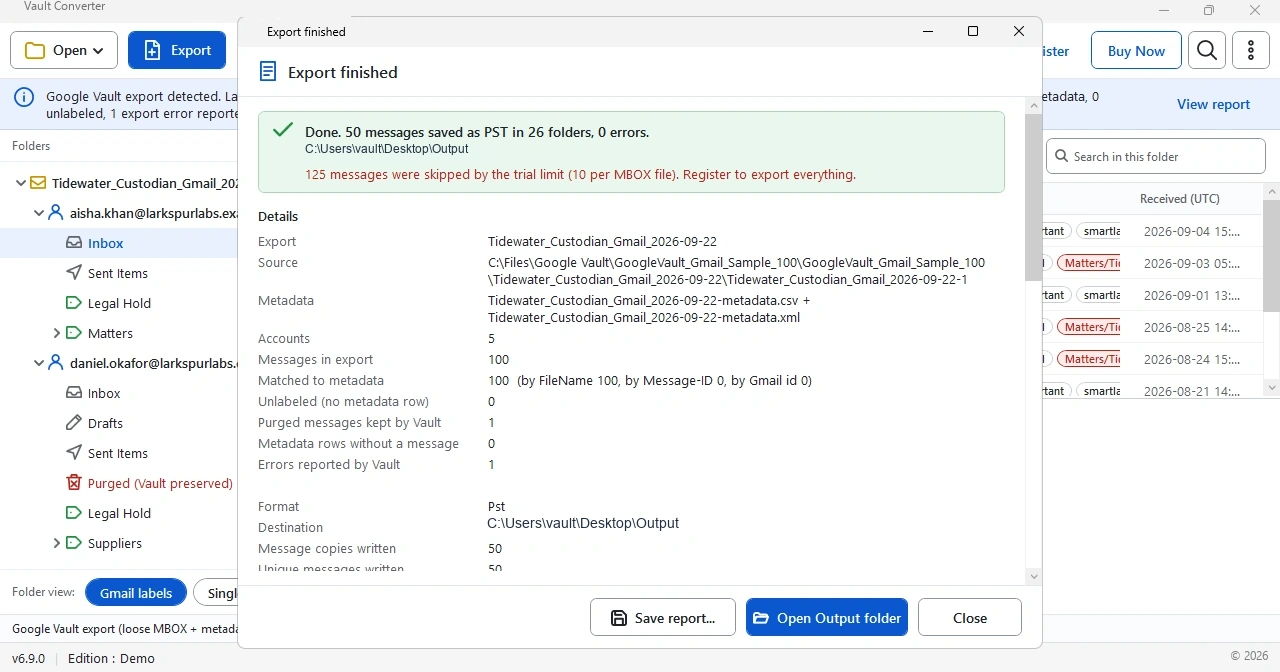
We ran the trial edition (v6.9) on a sample Gmail export with 5 accounts and 100 messages. The software read the Gmail labels from the metadata CSV and opened the export in 1 second.
| Item | Result |
|---|---|
| Export opened | 5 accounts and 100 messages, all 100 matched to the metadata file |
| Folder layout | With Like Gmail, the export window counted the 100 messages as 175 copies in 26 folders |
| PST output | The trial saved 50 messages in 26 folders with 0 errors. It saves the first 10 messages of every MBOX file, so the 5 accounts gave 50 |
| Trial limit | The trial saves the first 10 messages of every MBOX file |
| Vault reports | 1 purged message kept by Vault and 1 export error reported by Vault |
Select Save report in the finished window to keep these counts. Compare them with the Vault export before you hand the PST to anyone.
Know How Vault Splits Your Export
Vault splits PST exports at 1 GB and MBOX exports at 10 GB. A 50 GB mailbox exported as PST can arrive as 50 files or more. Opening that many parts by hand in Outlook is slow and easy to get wrong.
A bulk converter solves this. Vault Converter loads every part and writes clean PST output, so you handle one job instead of dozens. If Vault stopped your export early, see Google Vault Export Errors and Fixes.
Import the Vault PST into Outlook
Opening a PST adds it to Outlook as a data file. Importing copies its mail into a mailbox. Classic Outlook imports through File > Open & Export > Import/Export. Select Import from another program or file, then Outlook Data File (.pst) and Next. Browse to the file, set the duplicate option and select the mailbox or folder.
New Outlook uses Settings > Data files > Import on Microsoft's import page, then Outlook Data File (.pst) and Select file. Microsoft's pages name this menu in two ways, so look for Data files if Files is missing. To read a PST without copying anything, see How to Open a Google Vault Export.
Size matters when you plan the output. Microsoft sets a default limit of 50 GB for Unicode PST files in Outlook 2010, 2013 and 2016. The older ANSI format stops near 1.9 GB. For a bulk move into Microsoft 365, read the Google Vault Migration Guide first.
Which Output Should You Select?
Select PST when your team uses Outlook or when you plan to move mail to Microsoft 365. Select PDF when people only need to read the mail. EML and MBOX suit mail clients and review tools. Every option is listed on the Google Vault Gmail Converter page. For readable files, try the Google Vault to PDF Converter page.
Sources: Google Vault Help on export contents and reviewing exported messages. Microsoft Support on importing a PST file and Microsoft Learn on PST size limits. Google's Gmail API guide on labels, and Gmail Help on how labels differ from folders. Microsoft Support on opening an Outlook data file shows the menu names. Last checked 5 October 2026.
Related Guides
Frequently Asked Questions
Can I convert Google Vault MBOX files to PST?
Yes. Add the MBOX files, select PST as the output and start the conversion. You can also load PST parts that Vault created and merge them into fewer files.
Do I need Outlook installed to create PST files?
No. Vault Converter writes PST files without Outlook on the PC. You need Outlook only to open the finished PST.
Will Gmail labels show up as folders in the PST?
Yes, with the Like Gmail layout. Vault puts every message in one folder. Like Gmail rebuilds your labels as folders, so the mailbox looks the way users know it. Like Outlook keeps the first label as the folder and saves the other labels as categories.
Can I convert many mailboxes in one run?
Yes. Load the full export folder and convert every mailbox together. You can also create one PST for every custodian.
Are attachments and inline images kept?
Yes. Every attachment and inline image stays with the message it belongs to.
What if my export arrived in many parts?
Keep all parts in one folder and add that folder. Vault Converter reads them together, so you do not need to join files by hand.
Does Google Vault export PST files by itself?
Yes. Vault exports Gmail, Groups, Chat and Voice as PST or MBOX. Use the converter when an export arrives as MBOX or in many parts or when you want Gmail labels as folders.
Can I check the PST output before I buy Vault Converter?
Yes. The free trial converts the first 10 messages of every MBOX file, so you can open the PST in Outlook and check the folders first.
Why does one email appear in more than one folder?
Gmail lets one message have several labels, and a layout that follows labels stores a copy in every label folder. Select Like Outlook to save every message once.
How do I import the converted PST into Outlook?
Classic Outlook uses File > Open & Export > Import/Export, then Import from another program or file and Outlook Data File (.pst). New Outlook uses Settings > Data files > Import.
How large can a PST file be?
Microsoft sets a default limit of 50 GB for Unicode PST files in Outlook 2010, 2013 and 2016. The older ANSI format stops near 1.9 GB.
How is a Vault MBOX file different from a PST file?
MBOX holds mail as one long text file. A PST is Outlook's own data file. Vault splits MBOX files at 10 GB and PST files at 1 GB.
Key Takeaways
- PST is the output for Outlook users and for Microsoft 365 imports.
- Vault Converter writes PST files on a PC that has no Outlook installed.
- With the Like Gmail layout, Gmail labels return as folders and the PST matches the mailbox layout.
- Like Outlook saves every message once. Like Gmail adds a copy for every label.
- Every part of a split export loads in one run.
- The labels live in the metadata file, so open the export folder.
- The trial saves the first 10 messages of every MBOX file. Test a small sample first.
Keep Exploring
Google Vault Gmail Converter
Eight file formats and mailbox upload for Gmail exports.
Open the pageGoogle Vault to PDF Converter
Convert Vault data to readable PDF sets for review and records.
Open the pageHow It Works
Four steps from export to output, plus system requirements.
Open the pageGoogle Vault Export Errors and Fixes
Fix partial results, expired links and failed downloads.
Open the pageGoogle Vault Export Guide
Formats, split sizes and limits for every Vault data type.
Open the pageGoogle Vault eDiscovery and Compliance
Chain of custody, metadata XML and PDF review sets.
Open the pageTry Vault Converter on Your Own Export
The free trial converts the first 10 messages of every MBOX file. No card needed.